- Open the firefox tab and type in the address bar - about:config

-
Click on I'll be careful, I promise! button.

-
Find network.automatic-ntlm-auth.trusted-uris in the list

-
Type the internal website URLs as a comma separated string and click OK

Showing posts with label Firefox. Show all posts
Showing posts with label Firefox. Show all posts
Friday, 6 March 2015
[Solved] Firefox asks intranet password
I have installed firefox and set it as my default browser. When my laptop is connected to my company LAN and when I happen to open an internal URL, firefox always prompts for password.
I did the following and now firefox does not ask for password.

Wednesday, 18 February 2015
Open Mozilla Firefox 'Private Mode' permanently
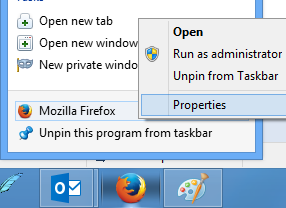
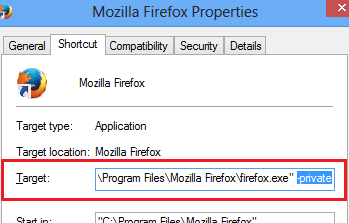
I wanted to setup Mozilla Firefox to open in 'Private' mode always. It was a simple process to setup in Windows 8.0.
- Open the properties of Mozilla Firefox from the task bar
- In the 'Target' box, include an option -private
Sunday, 4 May 2014
Ubuntu - Google Hangout/Chat : A plugin is needed to display this content
Error
Chrome - No Plug-in available to display this content
Firefox - A plugin is needed to display this content
Got the error when trying to set the webcam settings in google chat. I got the error in Chrome and Firefox browsers in Ubuntu 12.04.
I solved it by installing the icedtea plugin.
sudo apt-get install icedtea-7-plugin
Tuesday, 25 March 2014
Setup Firefox in Ubuntu 12.04
It was surprising to know that there is no direct way to install firefox in Ubuntu. No worries, I'm not a Windows user!
After I installed Ubuntu 12.04, I have installed firefox, in a not so direct way(double click a .deb, I meant). I'm listing below the steps to get the latest build of firefox setup.
- Download firefox from www.mozilla.org
- Extract the firefox-_____.tar.bz2 to a directory firefox
- Run the following command in terminal, to move the directory into /opt/sudo mv firefox /opt/firefox
- Using the following command, take a backup of the default firefox symbolic link in /usr/bin/ directorysudo mv /usr/bin/firefox /usr/bin/firefox_backup
- Create a symbolic link in the /usr/bin/ directory that points to the newly downloaded firefox binary. Use the following commandsudo ln -s /opt/firefox/firefox /usr/bin/firefox
- Open Tools > Setup Sync and follow instructions to complete the sync setup
- Install Adobe Flash Player plugin. This is needed to play video files in youtube. Use the following command to installsudo apt-get install flashplugin-installer
- After that install Adobe Flash Player, visit the url www.adobe.com/software/flash/about/ to ensure that the plugin is installed
Subscribe to:
Posts (Atom)