Showing posts with label Solved. Show all posts

Sunday, 12 April 2015

Chrome: Mute audio in Tab

I wanted to mute sounds from some websites that are open in tabs. Some are irritating ads, some are help avatars that have a default 'hello how can I help'.

Listed below are the steps to how I configured the mute on the Chrome browser tabs

  1. Open Chrome
  2. Type the following in the address bar and press enter
  3. chrome://flags/#enable-tab-audio-muting
  4. Click on the Enable link
  5. After enabling it will be highlighted as shown below
  6. Restart the browser
  7. Mute option appears on the browser tab

Friday, 6 March 2015

[Solved] Firefox asks intranet password

I have installed firefox and set it as my default browser. When my laptop is connected to my company LAN and when I happen to open an internal URL, firefox always prompts for password.

I did the following and now firefox does not ask for password.
  1. Open the firefox tab and type in the address bar - about:config
  2. Click on I'll be careful, I promise! button.
  3. Find network.automatic-ntlm-auth.trusted-uris in the list
  4. Type the internal website URLs as a comma separated string and click OK

Wednesday, 18 February 2015

Open Mozilla Firefox 'Private Mode' permanently

I wanted to setup Mozilla Firefox to open in 'Private' mode always. It was a simple process to setup in Windows 8.0.
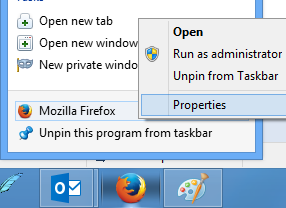
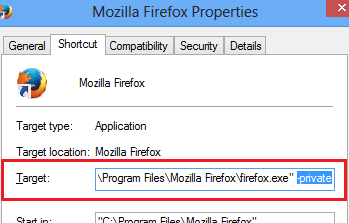
  1. Open the properties of Mozilla Firefox from the task bar
  2. In the 'Target' box, include an option -private

Sunday, 1 February 2015

[Solved] An unexpected error occured in com.google.gapps - Android error pop-up

The pop-up appeared on my Android phone multiple times whenever I connect to internet. I did not have any clue why this happened. I finally tried the below to fix the issue, and it fixed the issue.

Note: This works only on a rooted Android device.
  1. Open Terminal Emulator app
  2. In the emulator type the following command
bugreport > /mnt/sdcard/bugreport.log

I open the file bugreport.log and looked for the exception message related to gapps. From the logs, I realized that while calendar sync starts, somehow the account name is set as blank, which was causing the issue. To double-check whether this is the issue, I opened the Calendar app in my mobile and navigated to Menu > More > Calendars. When I opened this menu item, the application force closed with unexpected error. This confirmed that the issue is with the Calendar app in my mobile. To fix this, I did the following:
  1. From the home screen, I opened Settings > Applications > Manage applications > All > Calendar.
  2. Clicked on 'Clear data'
  3. Also opened the Settings > Applications > Manage applications > All > Calendar Storage.
  4. Clicked on 'Clear data'

The issue is fixed!

In pursuit of fixing the issue, I found some useful information to troubleshoot issues in Android. I am listing them below:

Get Device information
The below commands can be used in a Terminal Emulator app.
dumpstate
dumpsys

Use Logcat
The below command can be used in a Terminal Emulator app:
logcat -b events

Get Kernel log information
The below command can be used in a Terminal Emulator app:
dmesg

Log file locations in the device
  • /data/anr
    anr stands for 'Application Not Respoding'. So we can expect to see such information in this location.
  • /data/dontpanic
    this location can contain crash logs.
  • /data/kernelpanics
  • /data/panic/panic_deamon.config
    this config file has the configuration to point to crash log output location.
  • /data/panicreports
  • /data/tombstones
    this location can have logs related to application crash.

Saturday, 24 January 2015

[Solved] Chrome waits for a few seconds for new tabs

My chrome started waiting for a few seconds before the url typed was fetched. I disabled a feature in chrome settings which solved the issue.
Go to Settings > Show advanced settings > Privacy
In this section uncheck the option that reads 'Predict network actions to improve page load performance'

I hope this will be helpful to you too.

Friday, 29 August 2014

[Solved] Android to Ubuntu file transfer over bluetooth shows "Connection failure" error

I got this error while I was trying to transfer the files from my Android phone to my laptop, which have Ubuntu installed. I had the devices paired, but still the file transfer from my phone to laptop would not happen. I have done the following to configure Ubuntu to accept files from bluetooth devices that solved the problem.
Open the Personal File Sharing in the dash and check both the checkboxes under "Recieve Files over Bluetooth" section.

Sunday, 4 May 2014

Ubuntu - Google Hangout/Chat : A plugin is needed to display this content

Error
Chrome - No Plug-in available to display this content
Firefox - A plugin is needed to display this content

Got the error when trying to set the webcam settings in google chat. I got the error in Chrome and Firefox browsers in Ubuntu 12.04. I solved it by installing the icedtea plugin. sudo apt-get install icedtea-7-plugin

Sunday, 23 March 2014

Ubuntu 12.04 - Brasero will not copy a DVD to ISO

After installing Ubuntu 12.04, I wanted to copy a DVD I had. The Select disk to copy list will be blank, no matter how many times I selected the DVD. I had to read through many forums to finally figure out, it is something to do with a bug in Brasero. But, I figured out a workaround.

  1. Insert the disk into the DVD drive
  2. Open Brasero, and select Copy CD/DVD
  3. If the Select disk to copy list is having a value, you may not need to go further reading the post. You are good to go. Proceed to next step if the Select disk to copy is empty. Note:Don't close the Copy CD/DVD dialog.
  4. Right click on the DVD drive that is mounted, and select Eject
  5. Insert the DVD back in the drive
  6. The DVD should be listed in the Select disk to copy list

Note:You may need to install the restricted extras. Please refer my earlier post on how to install these libraries.

Saturday, 22 March 2014

[Solved] Cyanogenmod 7.2.0.1 - WIFI disconnects after display is off

I had installed Cyanogenmod 7.2.0.1 in my mobile. It is really an awesome OS!

After installation of the OS in my mobile, I had set the WIFI sleep policy to 'When screen turns off'. The problem I faced because of this setting was when my mobile display was off, WIFI would get disconnected and mobile data connection was switched on automatically; this caused my available mobile data allowance per month to be used, even though there was a WIFI available.

I totally forgot where I had set this policy. I literally browsed all the settings except, where it could be re-configured! Finally I found where I had set the WIFI sleep policy, and set it back to 'Never'.

In this post I will provide the steps on how to set the WIFI sleep policy to suit your need.
  1. Open Settings
  2. Navigate to Wireless & networks > Wi-Fi settings
  3. Press the menu button on phone
  4. From the menu, select 'Advanced'
  5. Open 'Wi-Fi sleep policy'
  6. Select the option that suits your need ( I set it to 'Never' )
No worries of WIFI disconnect after this setting was enabled.

Wednesday, 10 April 2013

Play age of empires in Ubuntu

Install Age of empires from setup.exe, using playonlinux. Target can be a usb drive locate by /media//AOEA

After install do the following:

  1. Open PlayOnLinux
  2. Click Configure - the wheel symbol
  3. Go to 'Wine' tab
  4. Open the task manager
  5. In the 'Applications' tab, browse to the age of empires exe

Tip on how to find video card details is available in the url:http://www.cyberciti.biz/faq/howto-find-linux-vga-video-card-ram/

Tweaks can be done:

  • The config file is ~/.PlayOnLinux/shortcuts/Age Of Empires II : The Conquerors
  • In this file, the working directory will be the directory in the cd command.
  • POL_Wine <the exe name> -nostartup "$@" is the next line
PlayOnLinux will expect the exe and the installed folder to be the working directory.

Monday, 26 March 2012

[Solved]: Ubuntu 11.10 wireless very slow in Dell XPS M1530

In one of my previous posts about slow internet connection experienced in Ubuntu 11.04, I could not solve the problem and finally I had to downgrade my laptop to Ubuntu 10.10.

Today's post is about slow wireless connection experienced in my Dell XPS M1530 laptop after installing Ubuntu 11.10 and how this problem was solved.

In my laptop I have installed Ubuntu on dual boot, along with Vista SP2. The wireless speed from Vista SP2 was fairly fast (after I manage to open a browser and try to download in Windows after long wait to boot and finally another long wait after double clicking on the browser application). So I concluded, the slow wireless speed in Ubuntu is something to do with the driver of the wireless adapter that is installed. From the information I got from lspci command, I searched for Linux driver for my wireless adapter, but I couldn't find any. Finally I got information about an utility in Ubuntu that allows installation of drivers which are released by the manufacturers for Windows OS. That is brilliant. I gave it a shot and got excellent speed in my WiFi connection.

I am listing below the steps that I followed to fix the wireless problem and get the WiFi connection to full speed on my laptop.
  1. Downloaded the drivers (.exe files) from dell.com for Windows OS. These driver packages (.exe files) are self extracting zip files, which can be opened and extracted using Archive Manager in Ubuntu
  2. Extract the downloaded drivers
  3. Using 'Package Manager', search for 'ndisgtk' and install ndisgtk
  4. Open 'Wireless Network Drivers', and click 'Install New Driver'
  5. Locate the .inf file from the extracted location above and click 'Install'
  6. In the 'Wireless Network Drivers' the driver will be listed with status Hardware Present: Yes

Hope this helps. :-)

Friday, 8 July 2011

An error occured in avast! engine: Invalid argument

I recently installed Avast4Workstation in my laptop running Ubuntu 10.10. The avast engine was able to do a complete scan of my system. After that I decided to fetch latest updates for avast and clicked 'Update database' in the GUI. After the update happened, the avast will not open, but shows the error message

An error occurred in avast! engine: Invalid argument

Solved:
In older kernels the maximum size of SHM block was limited to a certain number of bytes, that is being exceeded by the database. We need to increase the size of the SHM block to accommodate the large database
The command to be executed in the terminal is as follows. When executing the command it will ask for the root password.
sudo sysctl -w kernel.shmmax=128000000
The above command provided me with a temporary solution to the problem I was facing. After I restarted my machine, if I wanted to open avast, I had to type the command again. To get away with this, there is another way.

Add the line kernel.shmmax = 128000000 to the bottom of the sysctl.conf text file.
How to update the sysctl.conf file:
  1. Go to 'etc' folder, select sysctl.conf file
  2. With the sysctl.conf file selected, press Alt + F2. This will open the 'Run application' dialog
    1. Type gksu gedit
    2. Add kernel.shmmax = 128000000 to the file and save