- Open PlayOnLinux
- Click Configure - the wheel symbol
- Go to 'Wine' tab
- Open the task manager
- In the 'Applications' tab, browse to the age of empires exe
Friday, 13 January 2017
Open Age Of Empires in Ubuntu

Sunday, 12 April 2015
Chrome: Mute audio in Tab
I wanted to mute sounds from some websites that are open in tabs. Some are irritating ads, some are help avatars that have a default 'hello how can I help'.
Listed below are the steps to how I configured the mute on the Chrome browser tabs
- Open Chrome
- Type the following in the address bar and press enter
- chrome://flags/#enable-tab-audio-muting
- Click on the Enable link
- After enabling it will be highlighted as shown below
- Restart the browser
- Mute option appears on the browser tab


Friday, 20 March 2015
Microsoft Phasing out Internet Explorer - Chrome is successor
I was not too excited about the phasing out of Internet Explorer brand by Microsoft. The main reason is it is going to be the same browser going to be pushed on to the laptops with Microsoft Windows installed, but with a different name.
The reason I thought I would write about Internet Explorer brand is not completely because of the re-branding of Internet Explorer, but with a question that got answered within me that who is going to be the successor of Internet Explorer.
I bet it is going to be Google Chrome. Google Chromes performance lives up to the brand name - Internet Explorer. It is as slow as a dead snail nowadays. I wonder how Google have let its browser to degrade to this level.
Finally I installed Firefox which is still doing better.
Friday, 6 March 2015
[Solved] Firefox asks intranet password
I have installed firefox and set it as my default browser. When my laptop is connected to my company LAN and when I happen to open an internal URL, firefox always prompts for password.
I did the following and now firefox does not ask for password.
- Open the firefox tab and type in the address bar - about:config

-
Click on I'll be careful, I promise! button.

-
Find network.automatic-ntlm-auth.trusted-uris in the list

-
Type the internal website URLs as a comma separated string and click OK

Wednesday, 18 February 2015
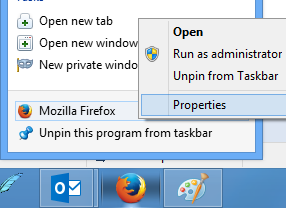
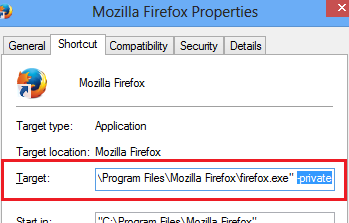
Open Mozilla Firefox 'Private Mode' permanently
I wanted to setup Mozilla Firefox to open in 'Private' mode always. It was a simple process to setup in Windows 8.0.
- Open the properties of Mozilla Firefox from the task bar
- In the 'Target' box, include an option -private
Sunday, 1 February 2015
[Solved] An unexpected error occured in com.google.gapps - Android error pop-up
The pop-up appeared on my Android phone multiple times whenever I connect to internet. I did not have any clue why this happened. I finally tried the below to fix the issue, and it fixed the issue.
Note: This works only on a rooted Android device.
I open the file bugreport.log and looked for the exception message related to gapps. From the logs, I realized that while calendar sync starts, somehow the account name is set as blank, which was causing the issue. To double-check whether this is the issue, I opened the Calendar app in my mobile and navigated to Menu > More > Calendars. When I opened this menu item, the application force closed with unexpected error. This confirmed that the issue is with the Calendar app in my mobile. To fix this, I did the following:
The issue is fixed!
In pursuit of fixing the issue, I found some useful information to troubleshoot issues in Android. I am listing them below:
Get Device information The below commands can be used in a Terminal Emulator app.
- Open Terminal Emulator app
- In the emulator type the following command
bugreport > /mnt/sdcard/bugreport.log
- From the home screen, I opened Settings > Applications > Manage applications > All > Calendar.
- Clicked on 'Clear data'
- Also opened the Settings > Applications > Manage applications > All > Calendar Storage.
- Clicked on 'Clear data'
dumpstate
dumpsys
Use Logcat
The below command can be used in a Terminal Emulator app:
logcat -b events
Get Kernel log information
The below command can be used in a Terminal Emulator app:
dmesg
Log file locations in the device
- /data/anr anr stands for 'Application Not Respoding'. So we can expect to see such information in this location.
- /data/dontpanic this location can contain crash logs.
- /data/kernelpanics
- /data/panic/panic_deamon.config this config file has the configuration to point to crash log output location.
- /data/panicreports
- /data/tombstones this location can have logs related to application crash.
Saturday, 24 January 2015
[Solved] Chrome waits for a few seconds for new tabs
My chrome started waiting for a few seconds before the url typed was fetched. I disabled a feature in chrome settings which solved the issue.
Go to Settings > Show advanced settings > Privacy
In this section uncheck the option that reads 'Predict network actions to improve page load performance'
I hope this will be helpful to you too.
Friday, 29 August 2014
[Solved] Android to Ubuntu file transfer over bluetooth shows "Connection failure" error
I got this error while I was trying to transfer the files from my Android phone to my laptop, which have Ubuntu installed. I had the devices paired, but still the file transfer from my phone to laptop would not happen. I have done the following to configure Ubuntu to accept files from bluetooth devices that solved the problem.
Open the Personal File Sharing in the dash and check both the checkboxes under "Recieve Files over Bluetooth" section.
Sunday, 4 May 2014
Ubuntu - Google Hangout/Chat : A plugin is needed to display this content
Error
Chrome - No Plug-in available to display this content
Firefox - A plugin is needed to display this content
Got the error when trying to set the webcam settings in google chat. I got the error in Chrome and Firefox browsers in Ubuntu 12.04.
I solved it by installing the icedtea plugin.
sudo apt-get install icedtea-7-plugin
Monday, 31 March 2014
Always open google chrome in incognito mode in Ubuntu
In Ubuntu, we can modify the google-chrome.desktop file to make google chrome always open in incognito mode.
Here is how we can do it
- Take a backup of the google-chrome.desktop file. Use the following command in terminal sudo cp /usr/share/applications/google-chrome.desktop /usr/share/applications/google-chrome.desktop.backup
- Open the google-chrome.desktop file for editing. Use the following command in terminal sudo gedit /usr/share/applications/google-chrome.desktop
- Find the line(line 108 for me)Exec=/usr/bin/google-chrome-stable %UReplace it with Exec=/usr/bin/google-chrome-stable --incognito %U
Saturday, 29 March 2014
Setup Hot corners in Ubuntu 12.04
Use the following steps to setup hot corners in Ubuntu 12.04
- Install 'CompizConfig Settings Manager' from 'Ubuntu Software Center'
- Go to Category > General > General Options > Key bindings > Show Desktop > Click on 'Disabled' button
- Select the corner that need to be enabled
- Install gconf-editor (type gconf-editor in terminal, the command to install will be shown if it is not installed already)
- After setting the hot corners using CompizConfigSetting Manager, open terminal and type gconf-editor
- In the Configuration Editor, go to apps > compiz-1 > general > screen0 > options
- Double click on active_plugins
- In the Edit Key dialog, move 'scale' to the end of the list, move 'expo' to second last in the list
Tuesday, 25 March 2014
Setup Firefox in Ubuntu 12.04
It was surprising to know that there is no direct way to install firefox in Ubuntu. No worries, I'm not a Windows user!
After I installed Ubuntu 12.04, I have installed firefox, in a not so direct way(double click a .deb, I meant). I'm listing below the steps to get the latest build of firefox setup.
- Download firefox from www.mozilla.org
- Extract the firefox-_____.tar.bz2 to a directory firefox
- Run the following command in terminal, to move the directory into /opt/sudo mv firefox /opt/firefox
- Using the following command, take a backup of the default firefox symbolic link in /usr/bin/ directorysudo mv /usr/bin/firefox /usr/bin/firefox_backup
- Create a symbolic link in the /usr/bin/ directory that points to the newly downloaded firefox binary. Use the following commandsudo ln -s /opt/firefox/firefox /usr/bin/firefox
- Open Tools > Setup Sync and follow instructions to complete the sync setup
- Install Adobe Flash Player plugin. This is needed to play video files in youtube. Use the following command to installsudo apt-get install flashplugin-installer
- After that install Adobe Flash Player, visit the url www.adobe.com/software/flash/about/ to ensure that the plugin is installed
Sunday, 23 March 2014
Install gnome 3 themes on Ubuntu 12.04
Recently I upgraded my laptop to Ubuntu 12.04. Its better that the best. :-)
While browsing the net for something I stumbled on a very pleasing UI theme for Ubuntu 12.04. I read along following all the links in the page and got to know much about GNOME 3. The themes collection available for GNOME3 was plenty and beautiful. I installed GNOME3 shell on my Ubuntu and then imported some very nice themes, icons from gnome-look.org.
GNOME 3
sudo apt-get install gnome-shell
Download themes
Follow instructions in the theme package about installation, usually the themes are copied to ~/.themes folder, icons are copied to ~/.icons and custom fonts needs to be copied to ~/.fonts.
GNOME tweak tool
This is a tool used to set the themes for UI. Very useful.
sudo apt-get install gnome-tweak-tool
Note:~/ refers to home directory. i.e., '/home/username/'
Ubuntu 12.04 - Brasero will not copy a DVD to ISO
After installing Ubuntu 12.04, I wanted to copy a DVD I had. The Select disk to copy list will be blank, no matter how many times I selected the DVD. I had to read through many forums to finally figure out, it is something to do with a bug in Brasero. But, I figured out a workaround.
- Insert the disk into the DVD drive
- Open Brasero, and select Copy CD/DVD
- If the Select disk to copy list is having a value, you may not need to go further reading the post. You are good to go. Proceed to next step if the Select disk to copy is empty. Note:Don't close the Copy CD/DVD dialog.
- Right click on the DVD drive that is mounted, and select Eject
- Insert the DVD back in the drive
- The DVD should be listed in the Select disk to copy list
Install restricted extras in Ubuntu 12.04
After installing Ubuntu 12.04 on my laptop, to unleash some advanced libraries, I installed the restricted extras.
sudo apt-get install ubuntu-restricted-extras
sudo /usr/share/doc/libdvdread4/install-css.sh
I got much of the information from the Ubuntu community help portal at https://help.ubuntu.com/community/RestrictedFormats/PlayingDVDs
Note:There will be a Configuring ttf-mscorefonts-installer screen that appears, use the TAB key to navigate to the ok button and press ENTER key.
Saturday, 22 March 2014
[Solved] Cyanogenmod 7.2.0.1 - WIFI disconnects after display is off
I had installed Cyanogenmod 7.2.0.1 in my mobile. It is really an awesome OS!After installation of the OS in my mobile, I had set the WIFI sleep policy to 'When screen turns off'. The problem I faced because of this setting was when my mobile display was off, WIFI would get disconnected and mobile data connection was switched on automatically; this caused my available mobile data allowance per month to be used, even though there was a WIFI available. I totally forgot where I had set this policy. I literally browsed all the settings except, where it could be re-configured! Finally I found where I had set the WIFI sleep policy, and set it back to 'Never'.
In this post I will provide the steps on how to set the WIFI sleep policy to suit your need.
- Open Settings
- Navigate to Wireless & networks > Wi-Fi settings
- Press the menu button on phone
- From the menu, select 'Advanced'
- Open 'Wi-Fi sleep policy'
- Select the option that suits your need ( I set it to 'Never' )
Saturday, 16 November 2013
Login as root in Ubuntu
To open the folders in ROOT user privilege, type the following command in terminal.
sudo nautilus
Sunday, 14 April 2013
Rename all files in a directory - Ubuntu
Type the following command in the terminal
for i in *; do mv $i "$i.txt"; done
mv: target `filename' is not a directory
This error occurred when I was using mv command. I solved by typing the below line before my mv command.
IFS=$'\n'
Zip all files in a directory - UBUNTU, LINUX using command prompt
for i in *; do zip -9 "$i.zip" "$i"; done
Subscribe to:
Posts (Atom)